
1830 Series Cloud Account Manager
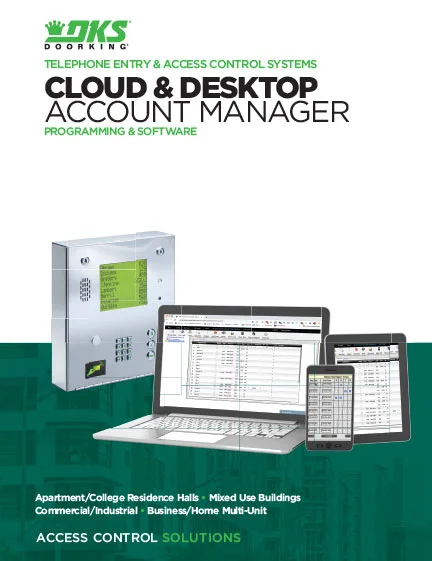
The 1830 Cloud is a browser-based account management system that allows you to program and manage your DKS 1830 Series Entry & Access Control Systems from any device (laptop, tablet, smartphone) with an internet connection. Create new accounts, program security and permission levels, card and transmitter numbers, hold open time zones, holiday schedules, elevator control functions, and more.
The DKS Cloud can be used with the 1833, 1834-80, 1834-90, 1835-80, 1835-90, 1837-80, and 1835-90 Telephone Entry System and 1838 Multi-Door Access System.
Visit the 1830 Series Cloud Account Manager page to learn more.
Below you will find a variety of step-by-step instructions, how-to videos, and documentation to address first time Cloud activation for new users, switching to the Cloud from Windows Account Manager, programming, troubleshooting questions, and more.
For additional questions, please scroll to the bottom of the page to select a method of contact.
Looking for help with a different product? Start by choosing the product category below:
Tech Support Downloads
- Activate New Account
- Convert To Cloud
- Tech Tip Videos
- Documentation
- FAQ
For NEW 1830 Series Entry System Users
Follow These Simple Steps to Set Up Your New Cloud Account Manager
Please watch the available videos to see important specific instructions for each step.
Step 1. Register Entry System & Activate Cloud Programming
The first step registers your Entry System and activates the Cloud Account Manager on your DKS account. Select the type of registration below based on the Internet Connection option your Entry System is using. If you have already registered your account you can login to your account and activate the Cloud on your Entry System at any time, please follow the steps in the video.
Not sure which Internet Connection option you’re using? Learn about Connection Options here.
Step 2. Create New Cloud User Accounts
Step 3. Grant Cloud Access to New User Accounts
Step 4: Start Programming
For EXISTING Windows Account Manager Users
Follow These Simple Steps to Convert Your Windows Account Manager Database to the Cloud Account Manager
Please watch the available videos to see important specific instructions for each step.
Step 1. Activate the Cloud
Step 2. Update Windows Account Manager Software to the Latest Version
Step 3. Export and Upload Your Software Conversion File
Step 4. Create New Cloud Users as Needed
Step 5. Grant Cloud Access to New User Accounts
Step 6: Start Programming
How do I activate the Cloud so I can upgrade from the Windows Account Manager?
How do I update my existing Windows Account Manager software to the latest version so I can properly export my software database to the Cloud?
How do I upload the database from an existing Windows Account Manager account to the Cloud?
How do I enable new uploads to the Cloud Account Manager from the Windows Account Manager Software?
How do I register my new DKS Entry/Access System and activate my Cloud account for the first time as a new user?
How do I log into the Cloud?
What is the basic layout of the Cloud Account Manager?
How do I create new user accounts for staff members to program the System using the Cloud?
How do I grant Cloud access to the new user accounts I have created?
How do I add a new Access Device to the Cloud?
How do I label and enable Access Devices in the Cloud?
How do I assign mass-enabled Access Devices in the Cloud?
How do I name my doors and gates (relays) in the Cloud?
How do I manage and control the status of my doors and gates (relays) in the Cloud?
How do I add a new resident to the Cloud?
How do I rename the resident and vendor headers in the Cloud?
How do I set and assign access security levels in the Cloud?
How do I share resident data between Cloud accounts?
How do I view a log of changes to resident information in the Cloud?
How do I add facility codes in the Cloud?
How do I set up elevator security levels in the Cloud?
How do I manage the resident elevator settings in the Cloud?
How do I configure elevator access via the reference table in the Cloud?
How do I change my service type or phone number in the Cloud Account Manager?
How do I change the Entry System on-screen greeting in the Cloud?
How do I set the correct system time in the Cloud?
How do I set specific schedules for holidays in the Cloud?
How do I schedule a transfer of information to or from the Entry System in the Cloud?
How do I check the communication history in the Cloud?
How do I view the log of Entry System activity (transactions) in the Cloud?
How do I create a report of Entry System activity (transactions) in the Cloud?
How do I view Entry System statistics in the Cloud?
How do I restore the database to a previously saved point in the Cloud Account Manager?
Yes! The DKS Cloud will work with any 1830 series entry system. There are no changes or updates required for the entry system. The Cloud is not compatible with the old “4E” control boards found in the 1815 and 1817 systems.
No! The DKS Cloud is only compatible with the following connection options:
- DKS Cellular
- DKS VoIP Voice & Data
- DKS Data over IP
- DKS IM Server-modem
The DKS Cloud is NOT compatible with the following connection options:
- Modem-to-Modem
- RS-232 hard-wired connection
- Network (manually configured LAN or WAN)
There are a couple steps that you need to take:
a) Log into your IM Server or DK Cellular registration and “Enable” the cloud for each system you wish to program through the Cloud
b) Go to: https://access.doorking.com
c) Log in using your IM Server user id and password. The systems you activated for the cloud will be displayed.
Yes! The person that has registered the entry system for the IM Server or DK Cellular can grant permission for other “user IDs” to have access to their systems.
No. There are two ways to set up the database for systems that were moved to the Cloud:
a) If this is an existing entry system, and you have the data available from our PC software, you can upload the entire system database into the Cloud.
b) If this is a new system, you can also enter the database from the beginning in the Cloud screens.
It is important to remember that the “Cloud” is the “True Database” for your entry systems. All changes must be made in the Cloud. Any changes made at the entry system will be overwritten when you send data from the Cloud. There is not a “Receive Data” function in the Cloud.
However, you may “Receive Data” using the desktop software, version 6.5. Then you can “Export to the Cloud”. This will overwrite the database in the cloud, so make sure the information is correct and what you want to use.
Yes! The DKS Cloud is accessible through any common web browser. You do not need any app or program loaded into your computer or device.
This works best on computer displays, laptops or tablets due to the screen size. Working on a smartphone device may not be as “user friendly” due to the smaller screen sizes.
- Activate New Account
- Convert To Cloud
- Tech Tip Videos
- Documentation
- FAQ
For NEW 1830 Series Entry System Users
Follow These Simple Steps to Set Up Your New Cloud Account Manager
Please watch the available videos to see important specific instructions for each step.
Step 1. Register Entry System & Activate Cloud Programming
The first step registers your Entry System and activates the Cloud Account Manager on your DKS account. Select the type of registration below based on the Internet Connection option your Entry System is using. If you have already registered your account you can login to your account and activate the Cloud on your Entry System at any time, please follow the steps in the video.
Not sure which Internet Connection option you’re using? Learn about Connection Options here.
Step 2. Create New Cloud User Accounts
Step 3. Grant Cloud Access to New User Accounts
Step 4: Start Programming
For EXISTING Windows Account Manager Users
Follow These Simple Steps to Convert Your Windows Account Manager Database to the Cloud Account Manager
Please watch the available videos to see important specific instructions for each step.
Step 1. Activate the Cloud
Step 2. Update Windows Account Manager Software to the Latest Version
Step 3. Export and Upload Your Software Conversion File
Step 4. Create New Cloud Users as Needed
Step 5. Grant Cloud Access to New User Accounts
Step 6: Start Programming
How do I activate the Cloud so I can upgrade from the Windows Account Manager?
How do I update my existing Windows Account Manager software to the latest version so I can properly export my software database to the Cloud?
How do I upload the database from an existing Windows Account Manager account to the Cloud?
How do I enable new uploads to the Cloud Account Manager from the Windows Account Manager Software?
How do I register my new DKS Entry/Access System and activate my Cloud account for the first time as a new user?
How do I log into the Cloud?
What is the basic layout of the Cloud Account Manager?
How do I create new user accounts for staff members to program the System using the Cloud?
How do I grant Cloud access to the new user accounts I have created?
How do I add a new Access Device to the Cloud?
How do I label and enable Access Devices in the Cloud?
How do I assign mass-enabled Access Devices in the Cloud?
How do I name my doors and gates (relays) in the Cloud?
How do I manage and control the status of my doors and gates (relays) in the Cloud?
How do I add a new resident to the Cloud?
How do I rename the resident and vendor headers in the Cloud?
How do I set and assign access security levels in the Cloud?
How do I share resident data between Cloud accounts?
How do I view a log of changes to resident information in the Cloud?
How do I add facility codes in the Cloud?
How do I set up elevator security levels in the Cloud?
How do I manage the resident elevator settings in the Cloud?
How do I configure elevator access via the reference table in the Cloud?
How do I change my service type or phone number in the Cloud Account Manager?
How do I change the Entry System on-screen greeting in the Cloud?
How do I set the correct system time in the Cloud?
How do I set specific schedules for holidays in the Cloud?
How do I schedule a transfer of information to or from the Entry System in the Cloud?
How do I check the communication history in the Cloud?
How do I view the log of Entry System activity (transactions) in the Cloud?
How do I create a report of Entry System activity (transactions) in the Cloud?
How do I view Entry System statistics in the Cloud?
How do I restore the database to a previously saved point in the Cloud Account Manager?
Yes! The DKS Cloud will work with any 1830 series entry system. There are no changes or updates required for the entry system. The Cloud is not compatible with the old “4E” control boards found in the 1815 and 1817 systems.
No! The DKS Cloud is only compatible with the following connection options:
- DKS Cellular
- DKS VoIP Voice & Data
- DKS Data over IP
- DKS IM Server-modem
The DKS Cloud is NOT compatible with the following connection options:
- Modem-to-Modem
- RS-232 hard-wired connection
- Network (manually configured LAN or WAN)
There are a couple steps that you need to take:
a) Log into your IM Server or DK Cellular registration and “Enable” the cloud for each system you wish to program through the Cloud
b) Go to: https://access.doorking.com
c) Log in using your IM Server user id and password. The systems you activated for the cloud will be displayed.
Yes! The person that has registered the entry system for the IM Server or DK Cellular can grant permission for other “user IDs” to have access to their systems.
No. There are two ways to set up the database for systems that were moved to the Cloud:
a) If this is an existing entry system, and you have the data available from our PC software, you can upload the entire system database into the Cloud.
b) If this is a new system, you can also enter the database from the beginning in the Cloud screens.
It is important to remember that the “Cloud” is the “True Database” for your entry systems. All changes must be made in the Cloud. Any changes made at the entry system will be overwritten when you send data from the Cloud. There is not a “Receive Data” function in the Cloud.
However, you may “Receive Data” using the desktop software, version 6.5. Then you can “Export to the Cloud”. This will overwrite the database in the cloud, so make sure the information is correct and what you want to use.
Yes! The DKS Cloud is accessible through any common web browser. You do not need any app or program loaded into your computer or device.
This works best on computer displays, laptops or tablets due to the screen size. Working on a smartphone device may not be as “user friendly” due to the smaller screen sizes.
See Our Full Library of All Product Documentation in One Place